


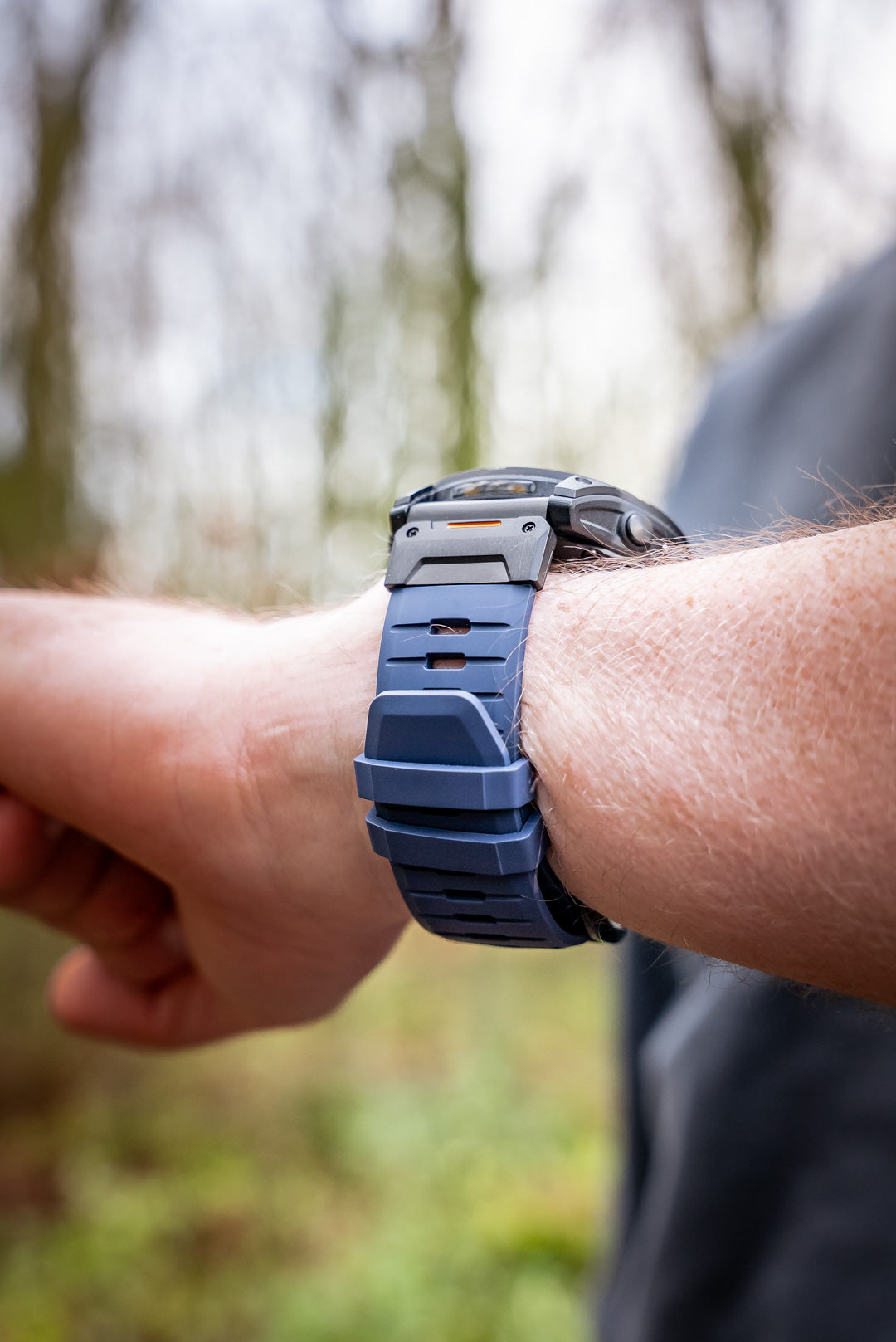
One of the best features of the Garmin Fenix range is the ability to listen to music without carrying your phone. Whether you’re running, training in the gym, or heading out for a long hike, Spotify on your Garmin Fenix lets you take your playlists with you, straight from your wrist.
This guide walks you through exactly how to use Spotify on a Garmin Fenix, including setup, downloading playlists for offline use, and fixing common issues.
What You Need to Use Spotify on a Garmin Fenix
Before you start, make sure you have the following:
-
A Garmin Fenix model that supports music
(Fenix 5 Plus, Fenix 6 Pro, Fenix 7, Fenix 7 Pro, Fenix 8, Enduro, Epix models)
-
An active Spotify Premium account
(Spotify Free does not support offline playback on Garmin)
-
The Garmin Connect app installed on your phone
-
A stable Wi-Fi connection
-
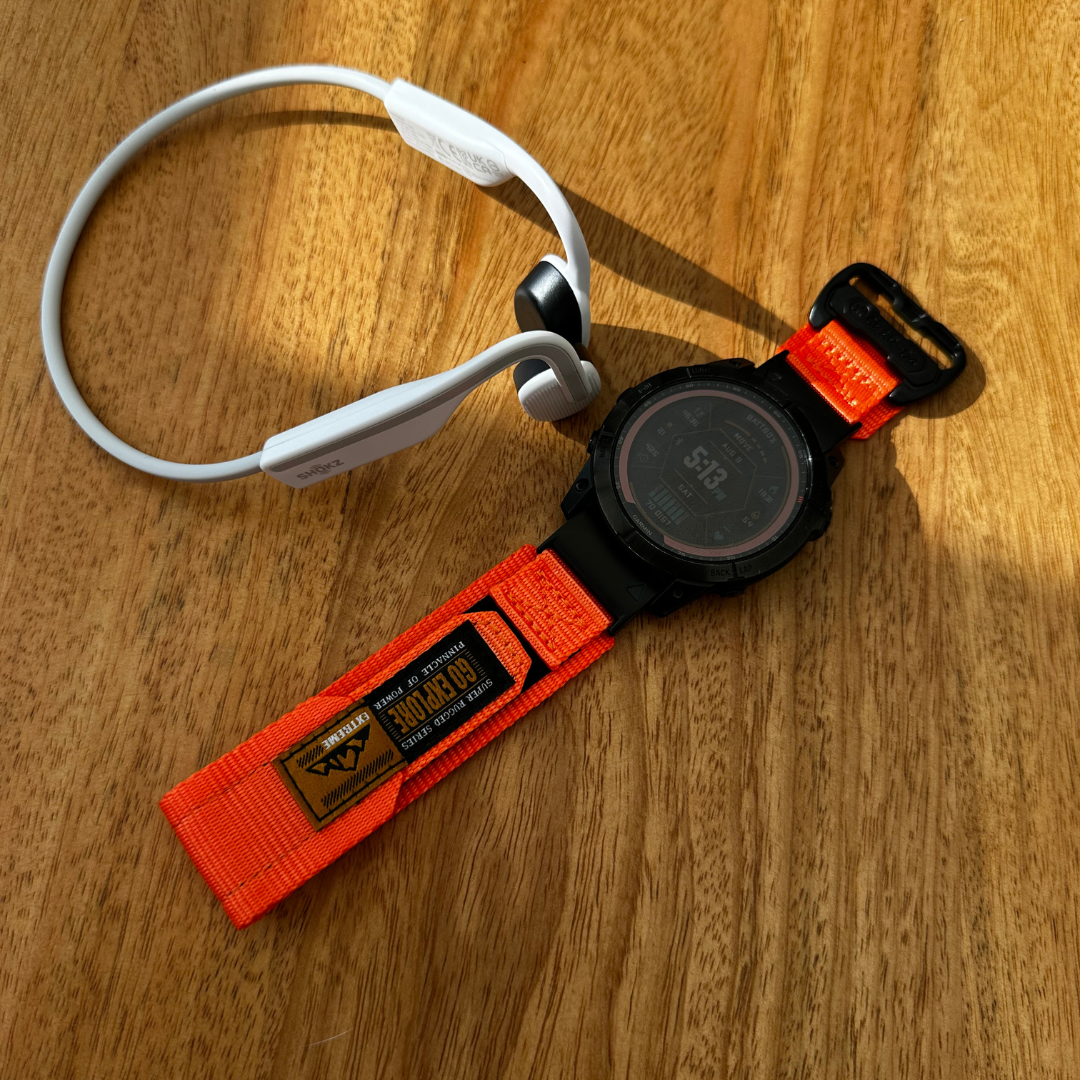
Bluetooth headphones (your watch connects directly to these)
Step 1: Install Spotify on Your Garmin Fenix
-
Open the Garmin Connect app on your phone
-
Go to More → Garmin Devices → Your Fenix Watch
-
Tap Music → Music Providers
-
Select Spotify and install the app on your watch
Once installed, Spotify will appear in the Music widget on your Fenix.
Step 2: Link Your Spotify Account
-
Open Spotify from the Music widget on your watch
-
You’ll be shown a pairing code
-
On your phone or computer, go to spotify.com/pair
-
Log into your Spotify account and enter the code
Your Garmin Fenix is now linked to Spotify.
Step 3: Download Spotify Playlists for Offline Listening
To listen without your phone, you’ll need to download playlists directly to the watch.
-
Make sure your watch is connected to Wi-Fi
-
Open Spotify on your Garmin Fenix
-
Browse your playlists, albums, or podcasts
-
Select what you want and choose Download
💡 Tip: Downloads are fastest when your watch is on charge and connected to Wi-Fi.
Step 4: Connect Bluetooth Headphones
Your Garmin Fenix connects directly to headphones...no phone required.
-
Hold the Menu button on your watch
-
Go to Music → Headphones → Add New
-
Put your headphones into pairing mode
-
Select them from the list
Once paired, they’ll reconnect automatically next time.
Step 5: Listen to Spotify During Activities
You can listen to Spotify while tracking workouts:
-
Start your activity (Run, Strength, HIIT, etc.)
-
Hold the Down button to open Music controls
-
Play, pause, skip tracks, or adjust volume
This works seamlessly for:
Common Spotify on Garmin Fenix Issues (and Fixes)
Spotify Not Syncing?
-
Check your Wi-Fi connection
-
Make sure your watch is charging
-
Restart both the watch and Garmin Connect
Music Keeps Stopping?
-
Re-pair your Bluetooth headphones
-
Update your watch software
-
Avoid low-battery playback
Not Enough Storage?
-
Remove old playlists
-
Fenix watches typically store 500–2,000 songs, depending on model
Why Phone-Free Music Is a Game Changer
Using Spotify on a Garmin Fenix means:
-
No phone bouncing in your pocket
-
Lighter runs and workouts
-
Fewer distractions
-
Full focus on training
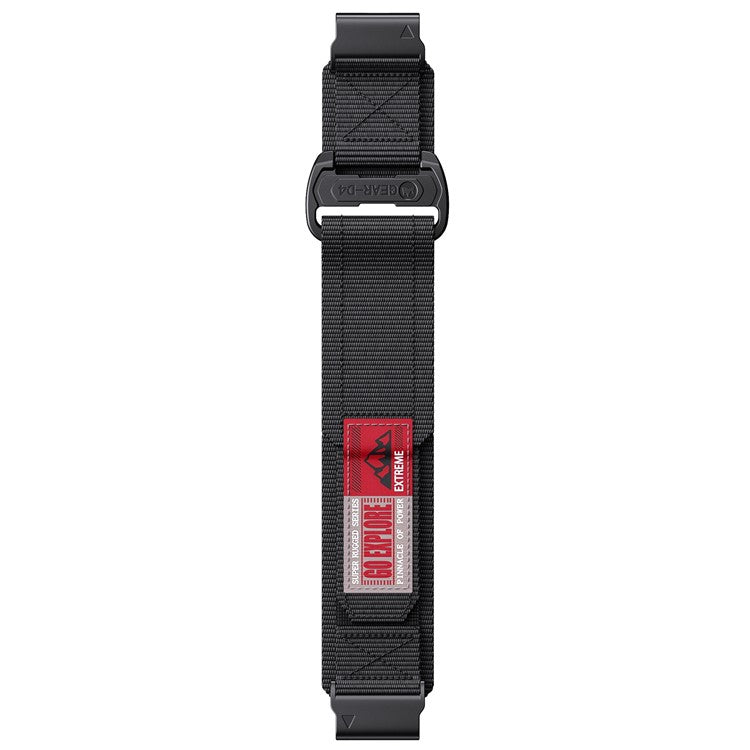
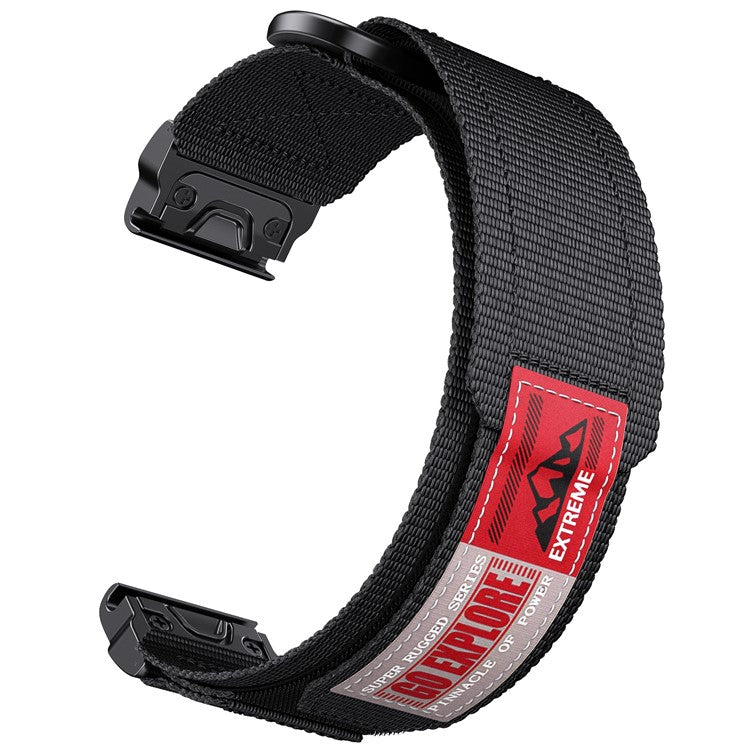
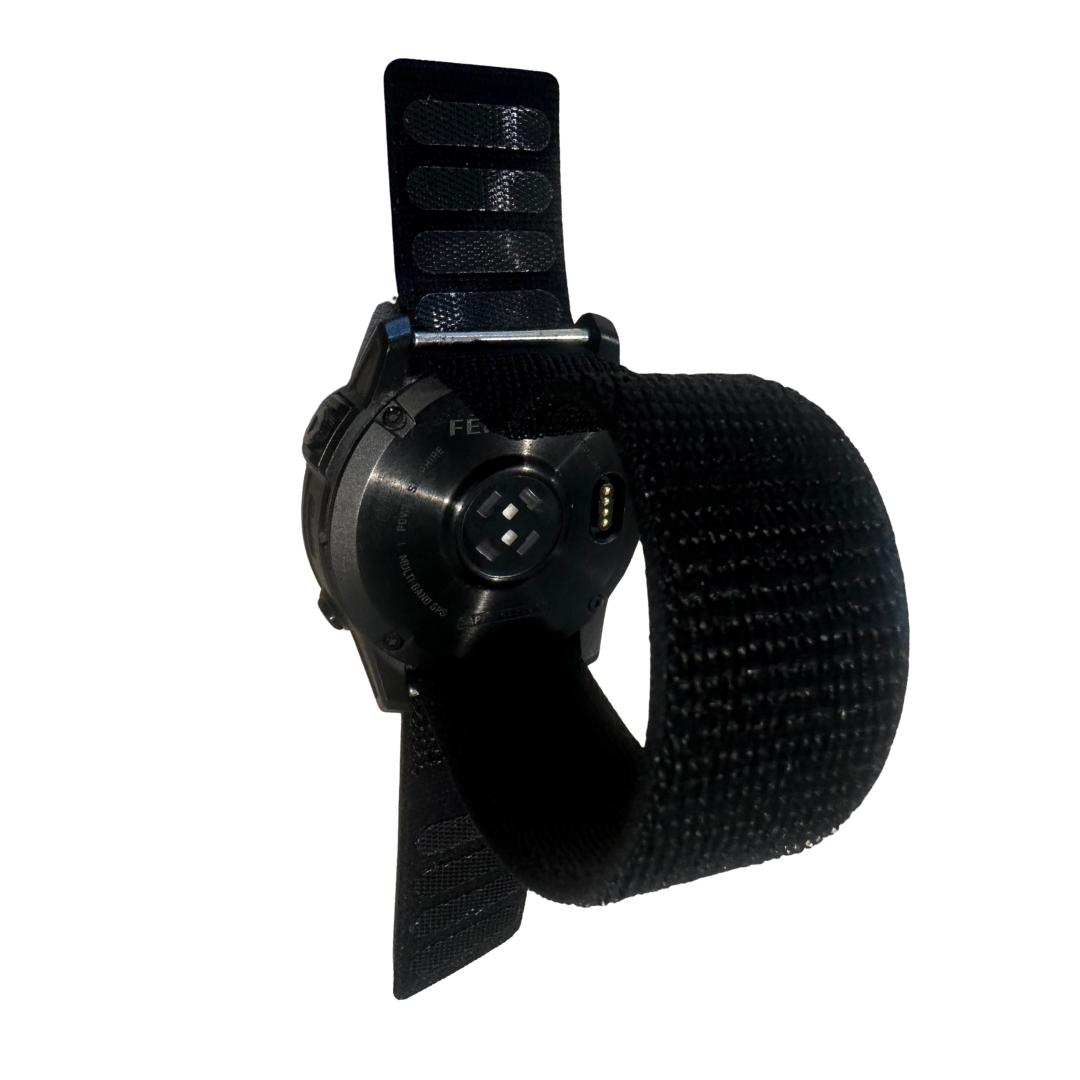
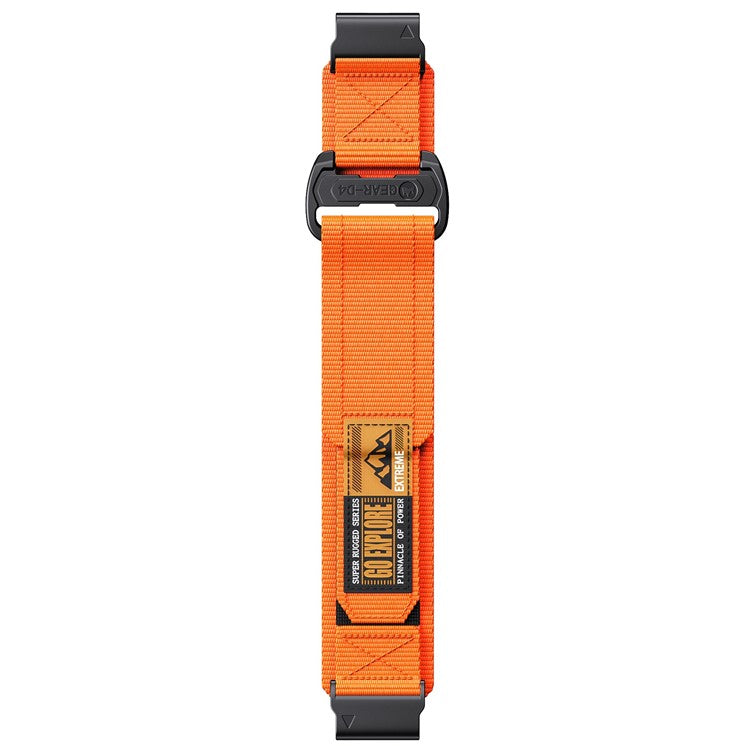
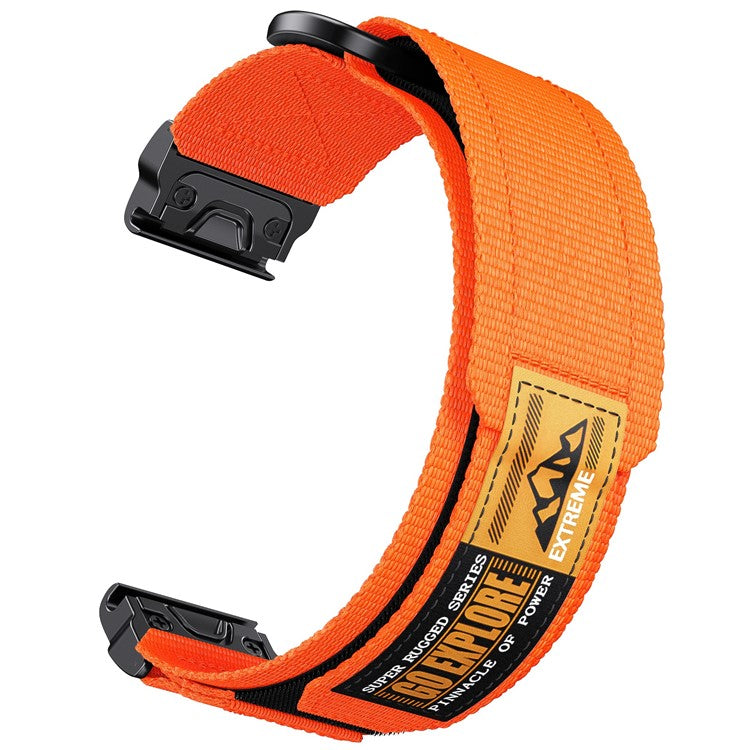
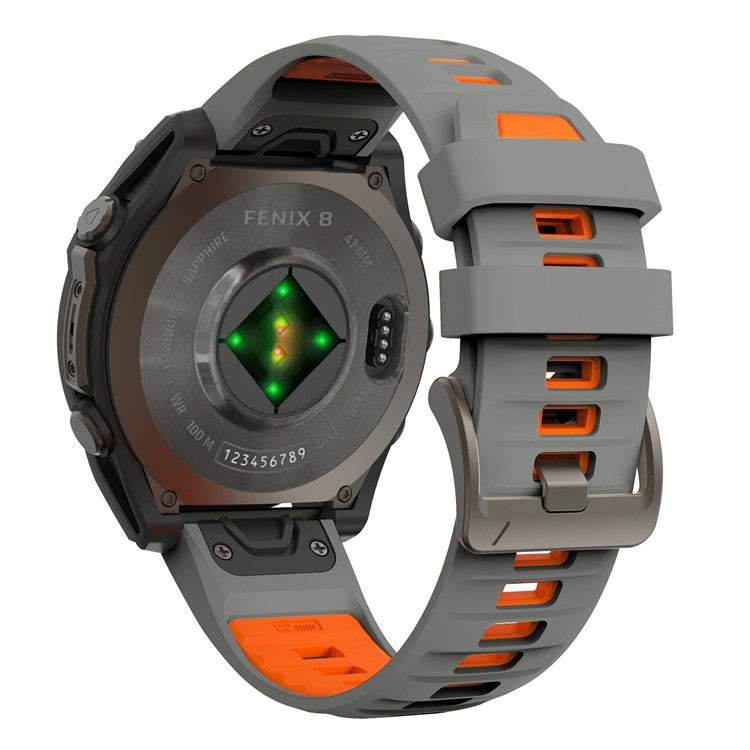
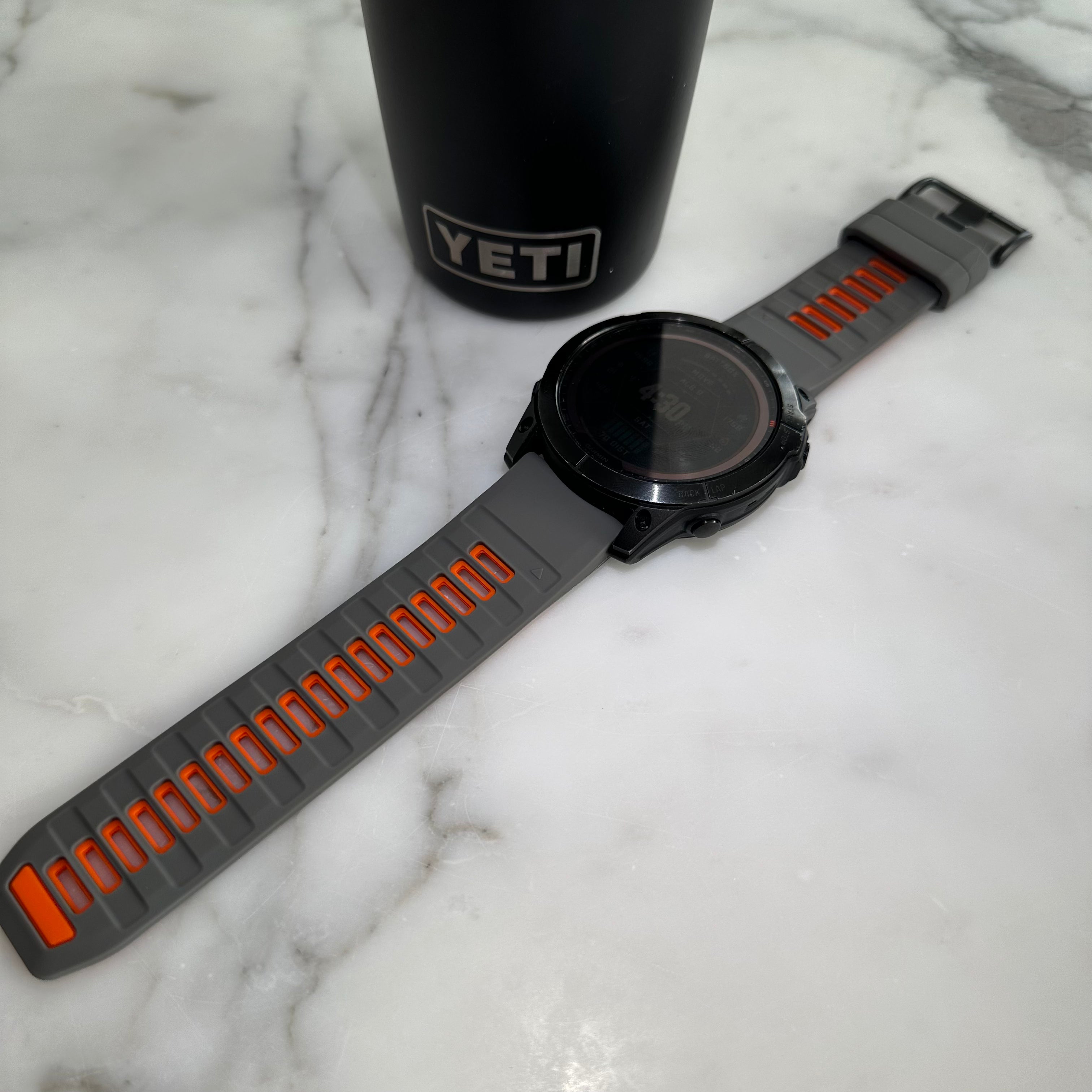
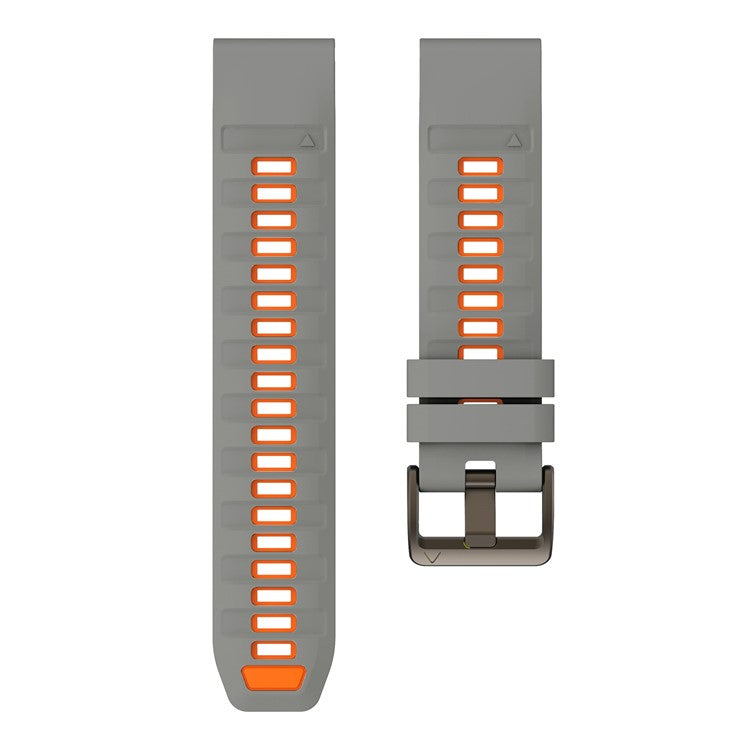
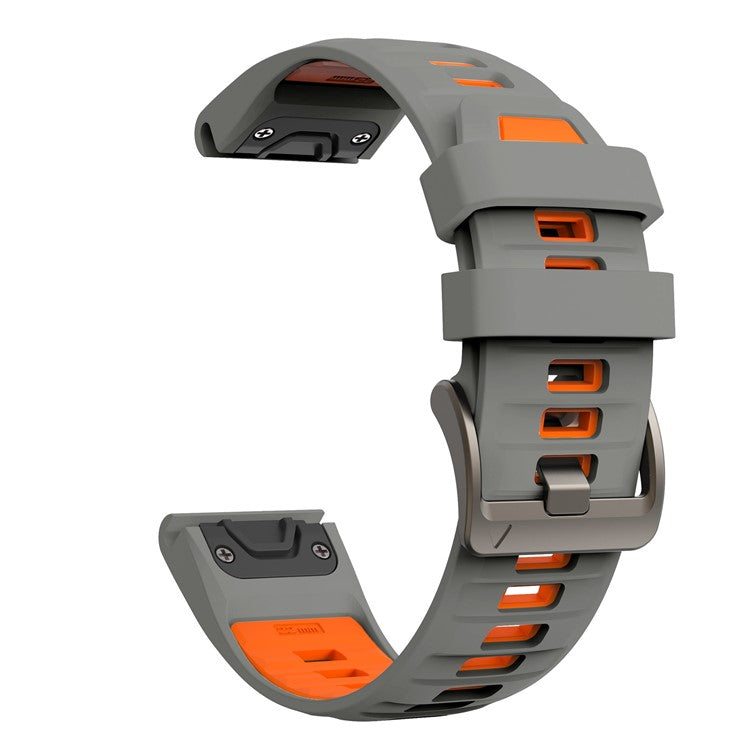
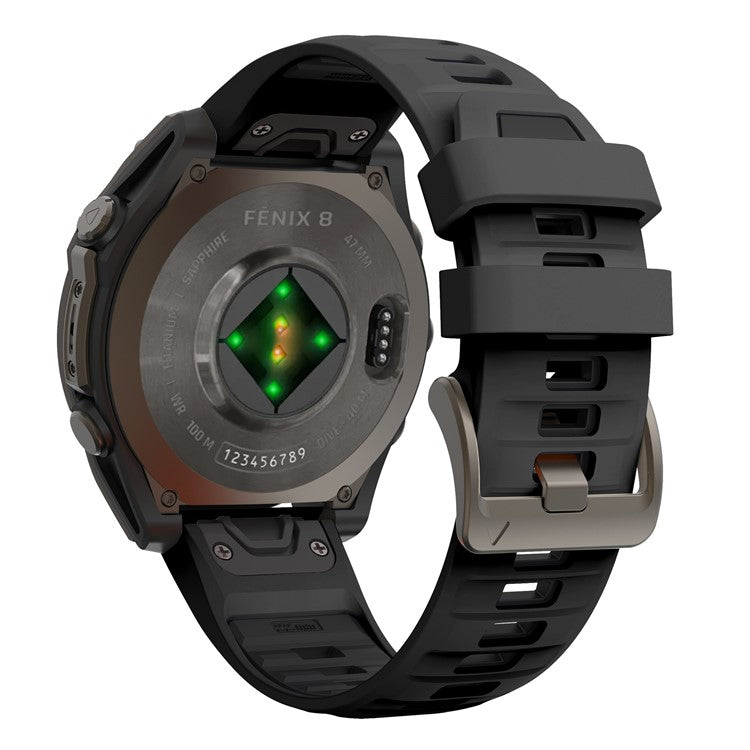
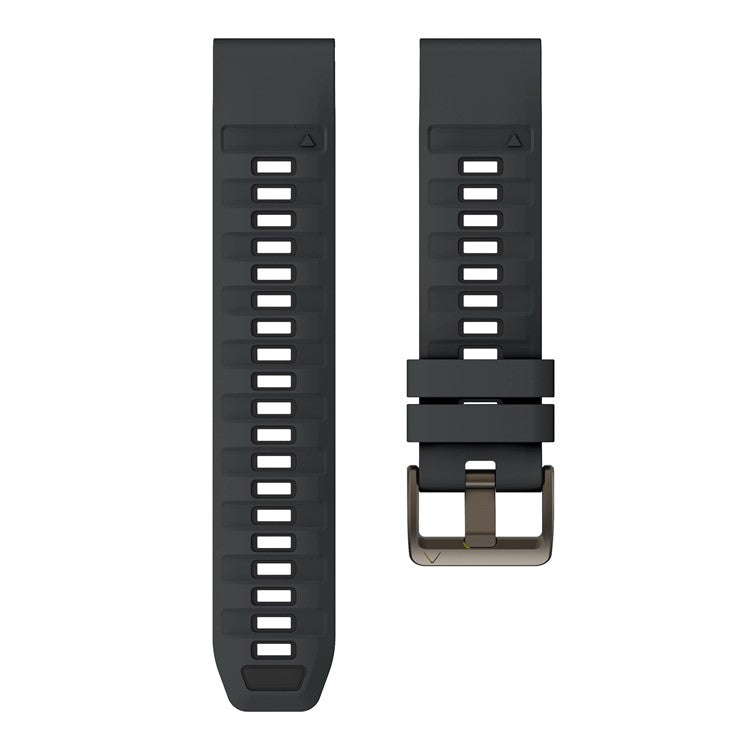
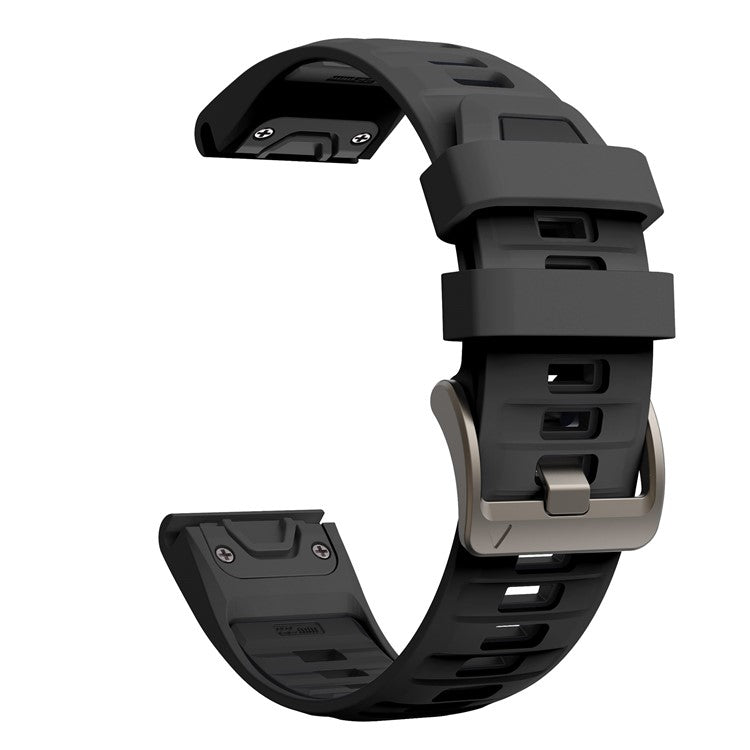
Pair it with a comfortable, sweat-resistant strap, and your watch becomes a proper training tool, not just a tracker.
Final Thoughts
Spotify on the Garmin Fenix is one of those features you’ll never want to give up once you’ve used it. Setup takes a few minutes, but after that, you get true phone-free music for every session.
If you train regularly, it’s one of the best reasons to choose a Fenix Pro or music-enabled model.



Aktie:
The Best Apple Watch Straps for Small Wrists (That Actually Look Luxury)
Garmin Fenix 8 vs Garmin Fenix E - What’s the Real Difference?